
What's New - October 2026
October 31, 2026
Platform
This Month at a Glance
You can now build audiences from the people your website pixel identifies, leave them out of other audiences, and find new people who resemble them. Each project also gets a Buyer research page built from your website, and webhooks can now deliver website visitors and Predictive Signals lists to your own endpoint.
28 new features and improvements, 16 fixes.
Website Visitor Audiences
Your pixel data now works directly in the audience builder, so you can retarget visitors, send hand-raisers to sales and keep visitors out of other audiences.
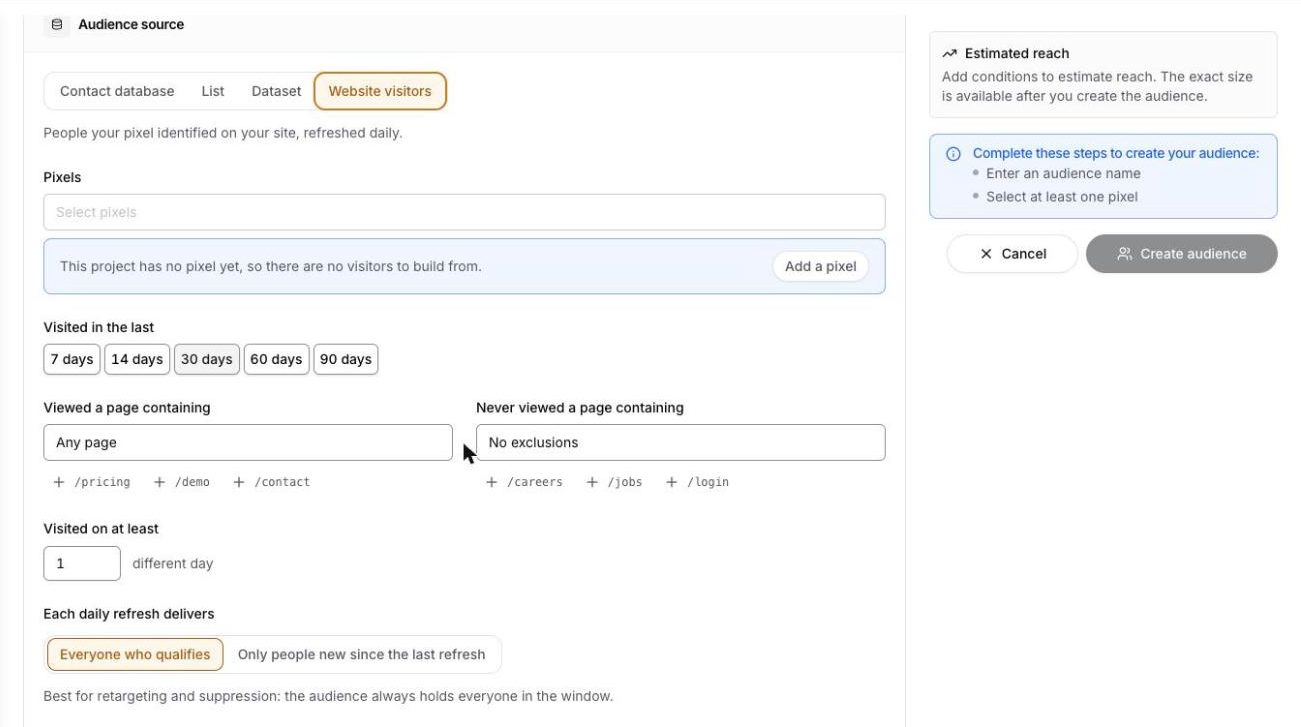
Website Visitors Audience Source
Choose Website visitors as an audience source to build an audience from the people your pixels identified, narrowed by pixel, lookback window and the pages people viewed. In an audience built from the contact database, you can also include or leave out the people in one of your website visitor audiences. For example, you can build a prospecting audience that leaves out people already on your site.
Where to find it: Segmentation > Audiences > Create audience, then choose Website visitors under Audience source. To include or leave out visitors in a Contact database audience, use its Website visitors section.
Find People Like Your Visitors
Reach new people who resemble all your site visitors or only the visitors to key pages such as pricing or demo. Delivr finds the topics your visitors research far more than everyone else and creates an audience of high-intent people in those topics.
Where to find it: Resolution > Identity, then Find people like your visitors. It also appears as Find people like these visitors on a website visitor audience's page.
Lookalike and Suppression Audiences From a Topic Profile
A topic profile shows the topics an audience or persona researches far more, and far less, than everyone else. Build lookalike audience and Build suppression list now open the audience builder with those topics already selected.
Where to find it: Segmentation > Audiences or Personas > open an audience or persona > Topic profile, then Analyze.
Buyer Research and Project Home
Projects now start from your own website and show what changed and what needs attention.
Buyer Research Page
Each project's buyer research is now on one page, generated from your project website. It covers your buyer personas, the intent topics each persona researches, sized in-market audiences, and how your competitors position themselves. If you have uploaded a list of your customers' company domains, the Competitors tab can build an audience of people at those accounts who are researching a competitor.
Where to find it: Segmentation > Buyer research
Start From Your Website
Enter your website on the project home and Delivr researches it. It finds your buyers and sizes who is in market, and each buyer has a Send to… button that takes its audience to a destination.
Where to find it: Home, on the Start from your website card
Project Home
The project home shows four key numbers, each compared with the week before: people in market, email-days identified, impressions, and the share of website visitors identified. Your top intent topics are listed next to them, each with a Build audience button. If your organization shares deal outcomes from a connected HubSpot or Salesforce account, the home also shows how much new pipeline came from accounts Delivr flagged as in market.
Where to find it: Home
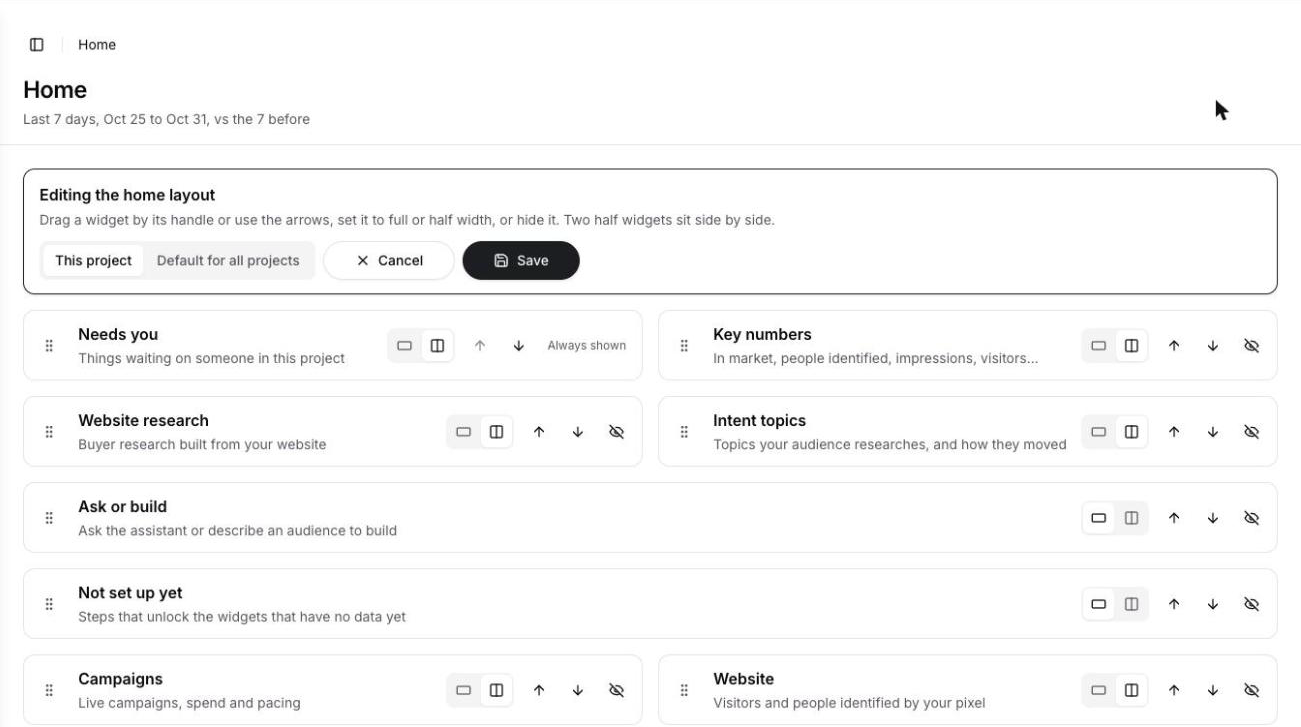
Customize Your Project Home
Users who can edit project settings can switch the home into edit mode. There you can reorder widgets by dragging or with the arrow buttons, set them to full or half width, hide or add them, and save the layout for this project or as the organization default.
Where to find it: Home > Edit home
Campaigns
DelivrDSP campaigns get more targeting controls and clearer reporting on results.
Exclude Audiences From a Campaign
Keep suppression lists such as current customers or opt-outs away from a campaign. You choose them right under the audiences you target, and you can still change them after launch.
Where to find it: Advertise > Campaigns > New campaign or Edit campaign > Audience > Exclude audiences
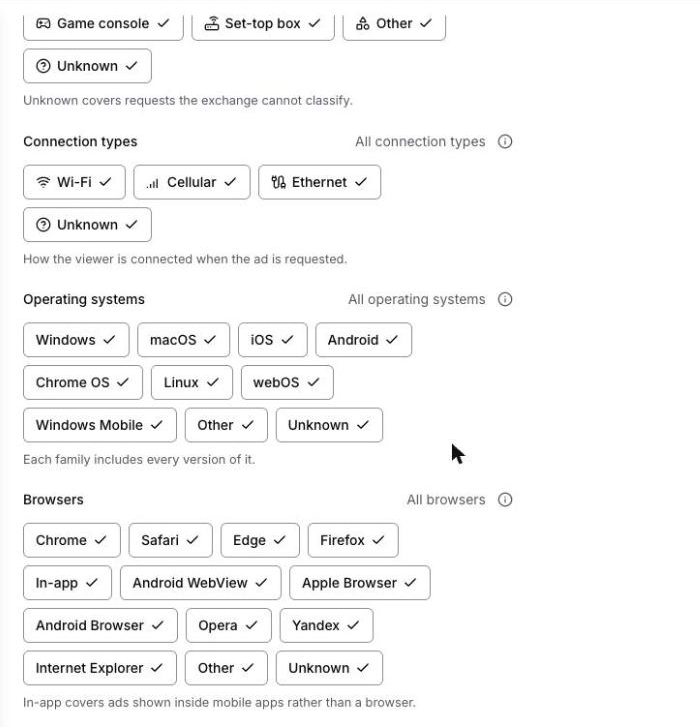
Operating System and Browser Targeting
Limit a campaign to specific operating systems and browsers, for example Chrome only. These options sit alongside device and connection types.
Where to find it: Advertise > Campaigns > New campaign or Edit campaign > Advanced settings > Devices & technology
Post-Click Conversions
The Results tab shows how many clicks went on to convert and what each conversion cost. You choose what counts as a conversion: form submissions, file downloads or visits to a page.
Where to find it: Advertise > Campaigns > open a campaign > Results tab > Post-click conversions
Reach, Frequency and Audience Composition
The Audience tab shows how many people a campaign reached and how often each person saw it. Audience composition breaks those people down by seniority, company size, industry, companies and job titles.
Where to find it: Advertise > Campaigns > open a campaign > Audience tab
Campaign Reporting Table and CSV Export
The campaign performance table has CPM, CPC and lifetime budget columns, including the share of the budget spent. Export CSV downloads every campaign for the selected dates.
Where to find it: Advertise > Reporting
Retarget Website Visitors on a Campaign
When you send a Website visitors export to DelivrDSP, you can attach it to one of your launched campaigns. The list stays on that campaign and grows with each run.
Where to find it: Exports > Add export > Website visitors source with a DelivrDSP destination > Attach to campaign
Exports and Integrations
More ways to deliver data where you need it, and more control over what you pay for.
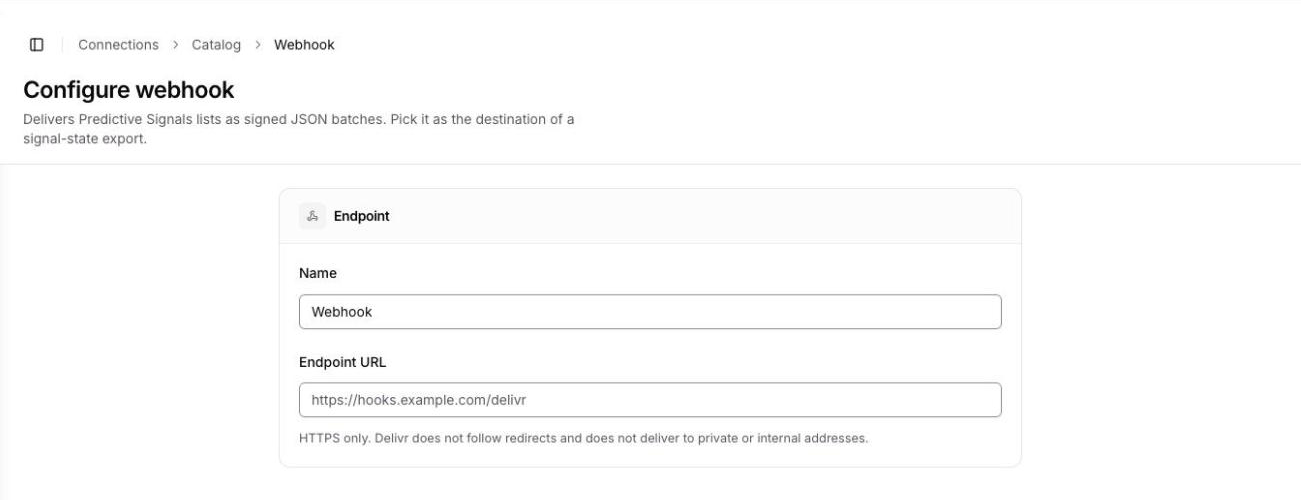
Webhook Delivery
Connect your own HTTPS endpoint as a webhook. Its signing secret is shown once when you connect it, and you can regenerate the secret or send a test from the connection's page. You can send Predictive Signals lists to it, or have a website pixel push the visits it identifies to it every 5 minutes.
Where to find it: Connections > Catalog > Webhook, then Exports > Add export and select the Webhook destination
BounceBan Email Validation
Connect your BounceBan key, set a cap per run, and turn on email validation for an S3, email or Slack export. Each run shows how many addresses BounceBan checked and how many credits it used.
Where to find it: Connections > Catalog > BounceBan, then Exports > Add export > Email validation
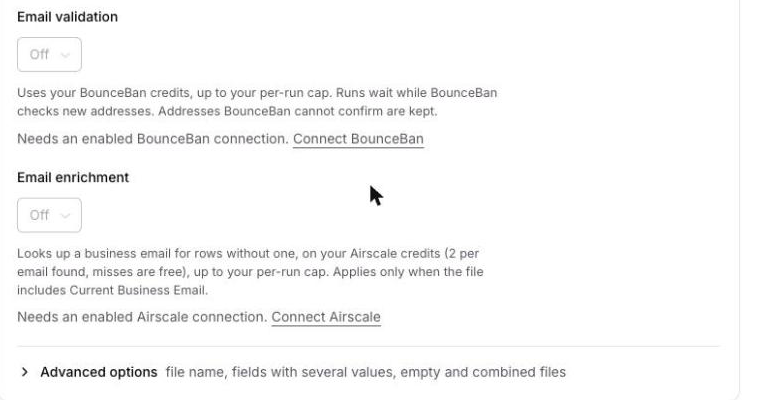
Airscale Email Enrichment
Connect your Airscale key to fill in missing business emails on S3, email and Slack exports. Airscale charges credits only for emails it finds.
Where to find it: Connections > Catalog > Airscale, then Exports > Add export > Email enrichment
Data Partners Catalog
Browse partner datasets, see each one's price, and enable the ones you want for a project, on plans that support partner data. Enabled fields can be added to audiences that don't use intent targeting, and to their exports. Organization Owners and Admins can accept a dataset's price and turn it on for any or all projects from one place.
Where to find it: Data partners, and organization Settings > Data & monitoring > Data partners
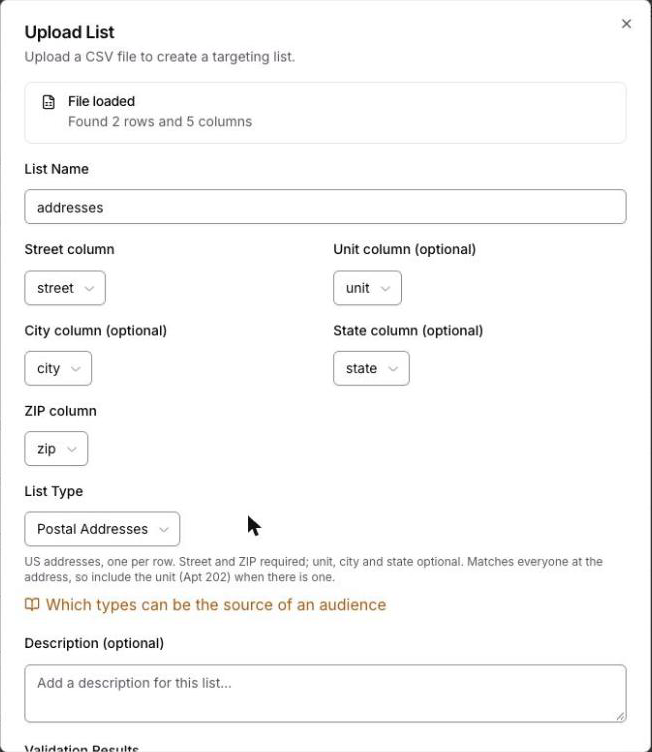
Postal Addresses List Type
Upload a list of US postal addresses. You can use the downloadable template or map your own file's street, unit, city, state and ZIP columns.
Where to find it: Segmentation > List uploads > Upload List. Postal Addresses is detected from the template, or choose it under List Type.
Pixels
Simpler setup and new ways to identify people.
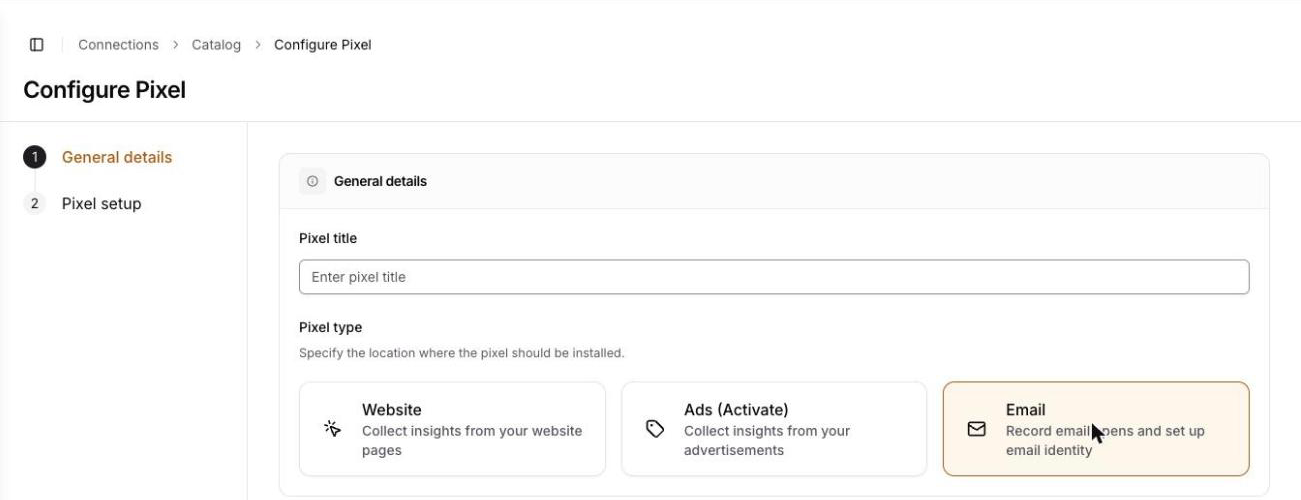
Email Pixel
A new Email pixel type records email opens and is where you set up email identity. You can copy the open pixel, add a token to the links in your emails so your Website pixel identifies the person who clicks, and upload a contact list to get back a token for each contact to import into your email platform.
Where to find it: Connections > Catalog > Pixel > Email
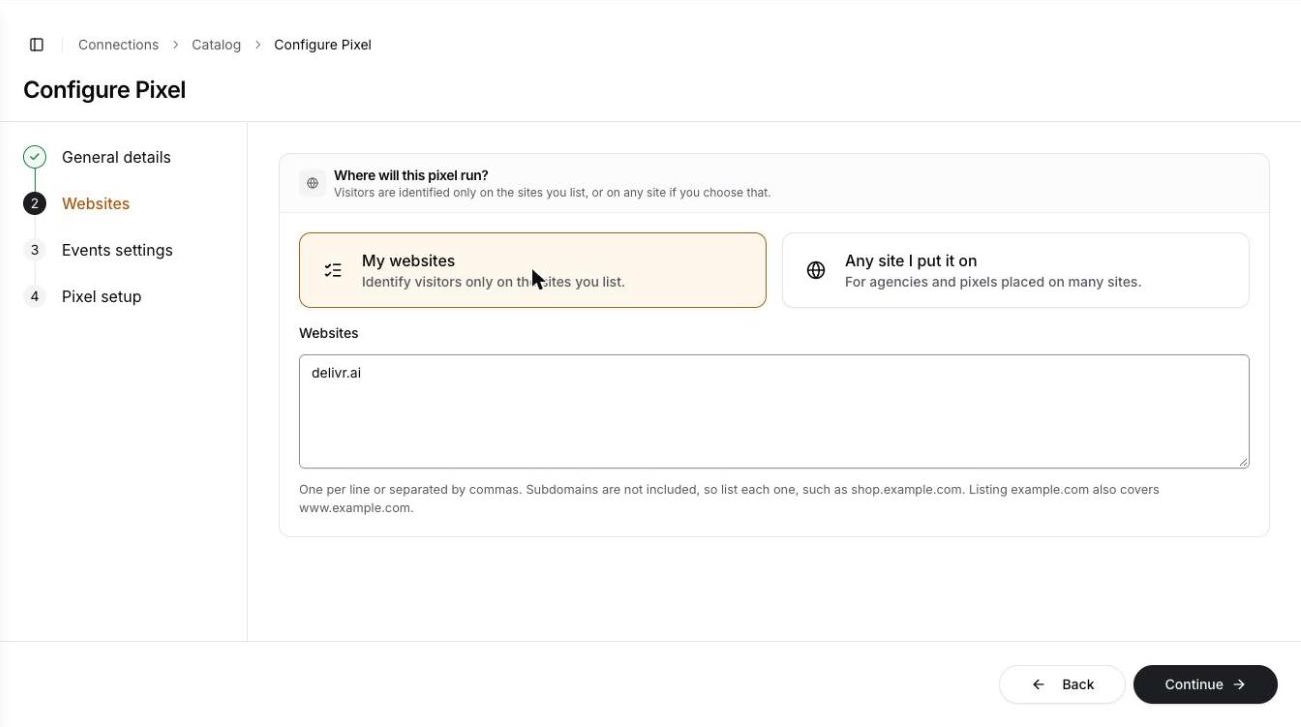
Choose Where a Website Pixel Runs
When you create a website pixel, you list the sites where it identifies visitors or choose any site you put it on, which suits agencies and multi-site setups. You can edit this later.
Where to find it: Connections > Catalog > Pixel > Website, and the pixel's Settings > Websites tab
Google Tag Manager Template
Install the Delivr pixel with a Google Tag Manager template instead of a Custom HTML tag. It is offered for website pixels served from the Delivr domain.
Where to find it: Connections > My connections > open a website pixel > Settings > Install
Resolution and Audience Builder
More detail on your traffic and finer control when building audiences.
Top Campaigns by Source, Medium, Referrer or Landing Page
Group the Top campaigns tab by UTM source, medium, referrer or landing page, not only by UTM campaign.
Where to find it: Resolution > Statistics > Diagnostics > Top campaigns
Resolution Summary CSV
Export a resolution summary for the date range you've selected. It's useful when you need to audit your resolution numbers.
Where to find it: Resolution > Statistics > Download resolution summary (CSV)
Campaign Filter on Identity
Filter People down to the people a specific DelivrDSP campaign reached.
Where to find it: Resolution > Identity > Campaign
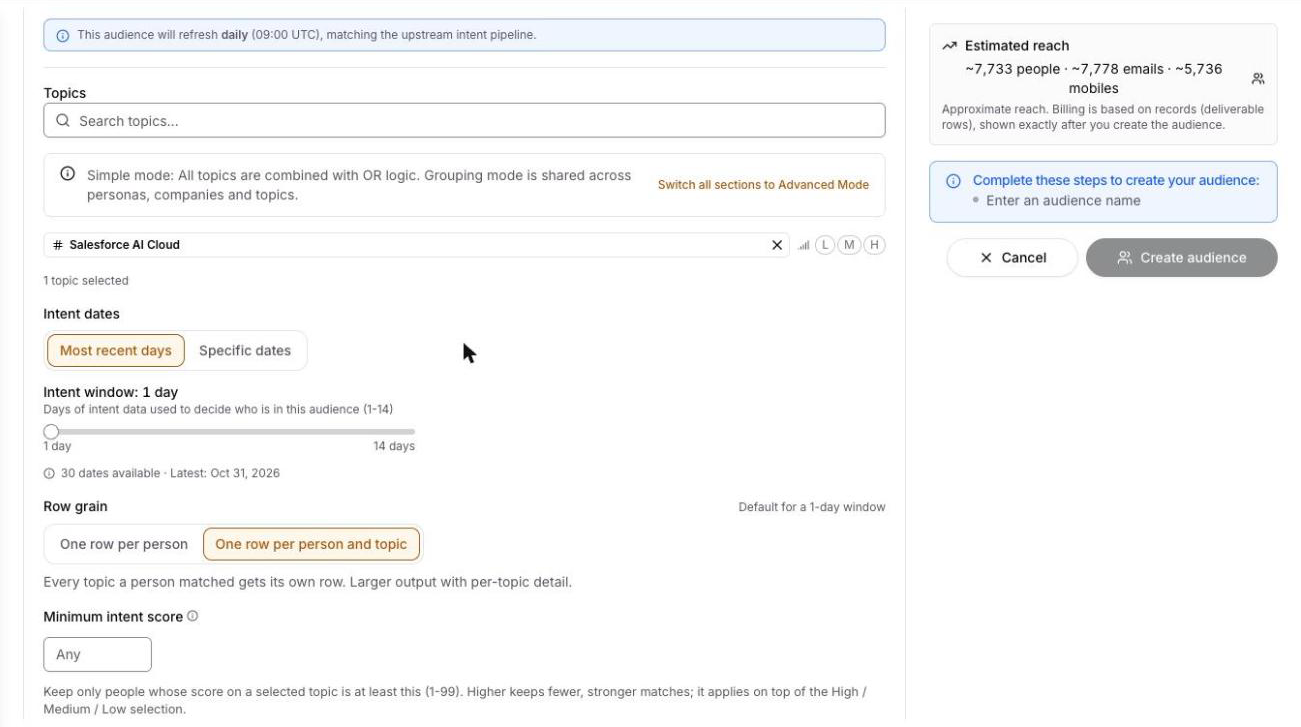
Minimum Intent Score
Set a minimum intent score from 1 to 99 on top of the High, Medium or Low intent strength you choose when you want fewer, stronger matches. It appears once you select a topic.
Where to find it: Segmentation > Audiences > Create audience > Intent
Assistant and Account
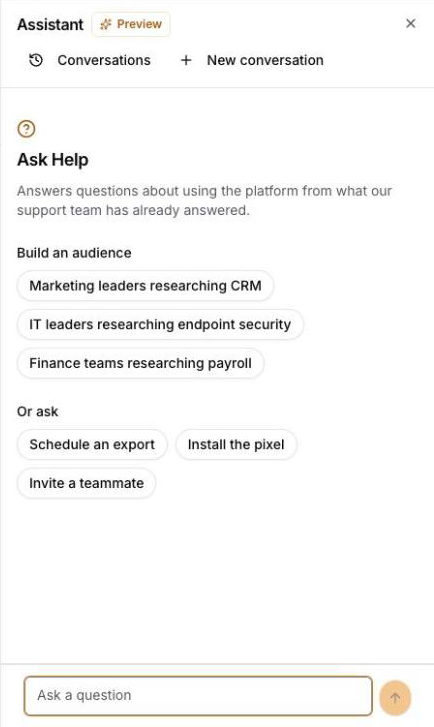
The Assistant is now open to every project member, along with new ways to manage AI access.
Assistant for Every Member
Every project member can now use the Assistant, which opens as a panel beside any page in a project. When it suggests a change, such as creating or editing an audience, it shows a preview of what will change. Nothing changes until you approve.
Where to find it: Ask or build button in the page header
Connected Agents
See which AI agents you have connected to your account and what each one can do, and disconnect any of them.
Where to find it: My Settings > Apps
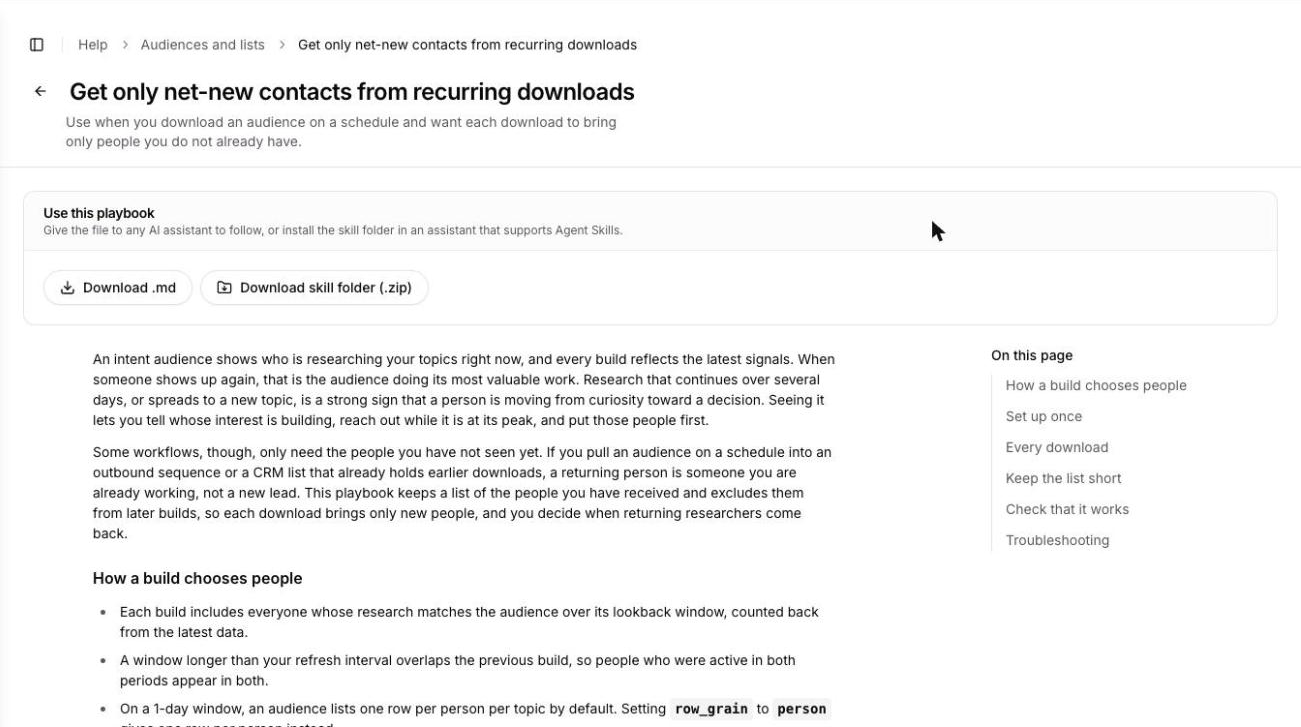
Playbooks
Step-by-step playbooks for common goals, each saying when it applies. You can download any playbook as a markdown file or as a skill folder for AI assistants that support skills.
Where to find it: Resources > Playbooks
Bug Fixes
Audience builder
- Company fields such as industry, domain and employee count range now appear in Additional filters.
- Excluded uploaded lists in the audience builder now show that anyone on any of the lists is excluded.
- Intent audiences that combine different topic groups with AND now build and size correctly.
- Intent audiences set to One row per person, the default for a multi-day window, now include every qualifying person.
- Email lists in the audience builder now match on Any Email (Business or Personal) by default, so people listed under a personal or secondary business address are found.
Exports and downloads
- Audiences built from an uploaded list can now be downloaded and resumed.
- The export Runs tab now pages through the export's full run history.
- Campaign exports of audiences built from an email list set to Use as uploaded now deliver the list's people.
Campaigns
- A campaign with only a lifetime budget now gets a daily budget that spreads it evenly across the flight.
- Domain allow and block lists uploaded on a live campaign's edit page are now saved and applied to the campaign right away.
- Draft creatives now activate when a campaign launches.
- Image banners exported at 1.33x, 1.5x, 2x or 3x now sync at their standard size, and HTML creatives that declare standard web namespaces, as inline SVG often does, now sync.
- Frequency caps now also apply to campaigns that target UID2 audience lists.
Dashboard
- The buyer Journey now tells you when events are cut off and lets you load more.
- Do-not-call phone numbers are now labeled and are no longer shown as click-to-call links.
- The project pickers for API key scope and event volume alerts now search on the server, so organizations with many projects can find any of them.